
Quick answer: To add hosted email to Outlook, choose Add Account and enter your full email address. Where automatic discovery fails, use the IMAP and SMTP hostnames, ports, encryption and sign-in method supplied by your email provider.
IMAP normally synchronises messages across devices; POP3 behaves differently. Test both sending and receiving after setup, and see our email troubleshooting guide if delivery fails.
This guide will aid you in setting up Microsoft Outlook. Either manually through the use of IMAP (or POP3) and SMTP, or automatically via the auto account tool.
Microsoft Outlook is one of the most popular email providers. Furthermore, if set up correctly, you can use Outlook to manage your entire mailbox. This removes the need to access webmail to use your email address.
Having your email in Outlook is great. You can continue to benefit from using your custom domain name email, retaining the majority of Outlook’s amazing features. Also, the added flexibility of being able to access your email from any supported device.
Add email to Outlook automatically
Outlook can be set up automatically, In Outlook 2016 this is how the interface looks.
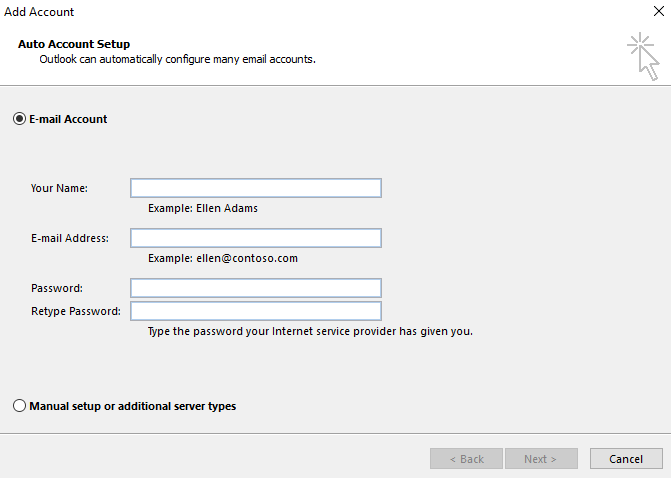
1. Firstly, enter your account details and click next.
2. The tool will attempt to automatically set up the email. If unsuccessful, proceed to manual set-up.
Add email to Outlook Manually
3. To begin manual outlook configuration, click POP or IMAP in the following prompt.

4. Once you choose POP3 or IMAP click next. Afterwards, you will see the following sections: User Information, Server Information, and Logon Information.
5. In the user information section, enter your name and email address.
The name setting is what will be displayed to recipients, so you can set this to what you want. For email address enter the email address you’re adding, for example – yourname@yourdomain.uk
6. After completing the user information section, select the account type, This will be either IMAP or POP3 and use the configurations settings below.
Server Information
| Account Type | IMAP/POP3 |
| Incoming mail server (NON-SSL) | yourdomain.tld |
| Incoming mail server (SSL) | yourdomain.tld |
| Outgoing mail server (SMTP) | yourdomain.tld |
Login Information
| User Name: | yourname@yourdomain.tld |
| Password: | your password |
Final Checks
1. Now that you have completed the configuration. You will need to check and set further advanced settings, by clicking More Settings.
2. Afterwards, click the Outgoing Server Tab and tick the checkbox for “My outgoing server (SMTP) requires authentication”
3. After that, select the same settings checkbox, this saves time re-entering the same values.

4. Click on Advanced, from here check the port numbers.
| Protocol | Non-SSL Port | SSL Port |
| IMAP | 143 | 993 |
| POP3 | 110 | 995 |
| SMTP | 25 | 465 |
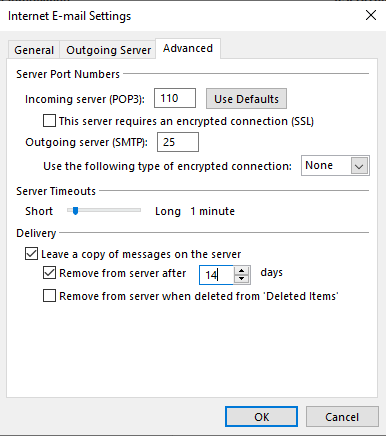
5. Once you have checked over these settings, Click OK.
6. Finally, click Next, this will open the testing tool.
For email deliverability, understand SPF, DKIM and DMARC.
Outlook troubleshooting after account setup
Outlook has several desktop and mobile versions, so the exact menu labels can differ. If account discovery fails, use the mail server settings provided by the host and choose encrypted IMAP and SMTP connections supported by that service. Do not turn off encryption simply to make a connection work.
If messages arrive but will not send, check outgoing server authentication and the SMTP settings. If folders differ across devices, confirm that the account is set up as IMAP rather than POP3. Test a reply from an external mailbox, and see our POP3 and IMAP explanation before changing how messages synchronise.