-
 Nic
Nic - May 4, 2026

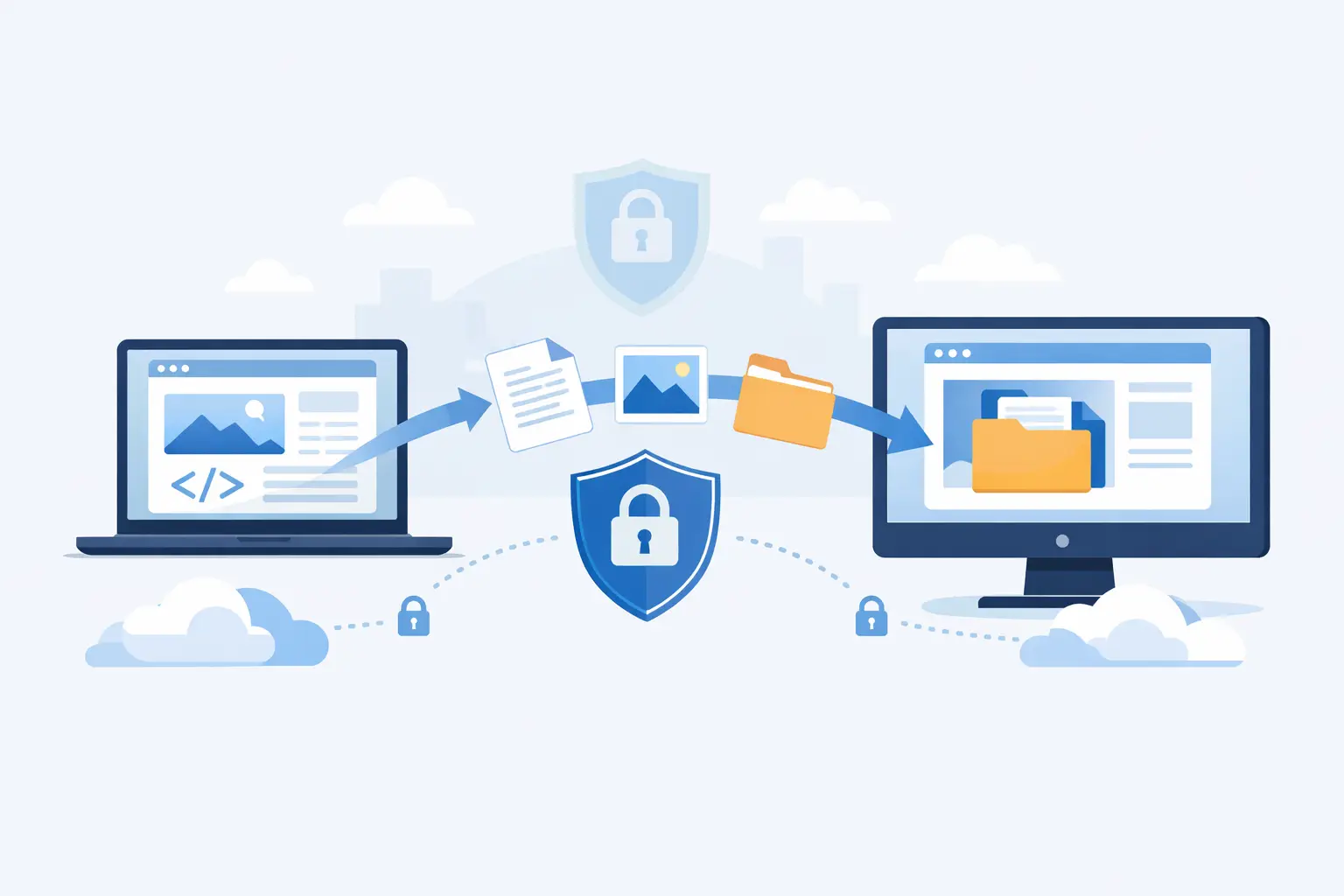
Moving a website should not feel like defusing a bomb. Yet for many site owners, the moment they need to work out how to transfer website files, the real worry is not the files themselves – it is the risk of downtime, broken pages, missing images or a database that does not come along for the ride.
The good news is that file transfers are usually straightforward once you know what actually needs moving, which method fits your setup, and where mistakes tend to happen. Whether you are switching hosts, uploading a new site, moving a client project or making a manual backup, the job is less about technical wizardry and more about doing the basics in the right order.
How to transfer website files without breaking your site
Before you transfer anything, check what your website is made of. A simple HTML site may only need files copied from one location to another. A WordPress site, ecommerce shop or custom PHP application is different. In those cases, the website files are only part of the picture. Your database, email settings, DNS records and configuration files may matter just as much.
That distinction is where many migrations go wrong. Someone moves the public_html folder, loads the site in a browser, and finds a blank page or a database connection error. The files moved successfully, but the site was never just files.
If you are not sure what platform you are using, look for common signs. WordPress sites usually include wp-content, wp-admin and wp-includes folders. PHP applications may include config files with database credentials. Static sites will often contain HTML, CSS, JavaScript and image folders with no obvious database references.
The three main ways to transfer website files
The most common methods are FTP or SFTP, cPanel File Manager, and full backups or migration tools. Each works, but they suit different situations.
FTP and SFTP are useful when you want direct control. You connect to your hosting account with a file transfer client, browse the server folders, and upload or download what you need. SFTP is the better choice where available because it is encrypted and more secure.
cPanel File Manager is often simpler for smaller jobs. If you need to upload a few files, replace a theme, copy a folder or download a compressed archive, working through your browser can be quicker than opening a separate desktop app. It is less convenient for very large sites, but perfectly practical for many day-to-day tasks.
Backups and migration tools are the better option when you want to move a complete website with less manual effort. This is especially true for WordPress and other database-driven sites. A proper backup can package the site files and database together, which reduces the chance of leaving something behind.
Using FTP or SFTP to move files
If you want the hands-on route, start by downloading an FTP client and collecting your hosting login details. You will normally need the host name, username, password and port. Once connected, you will see your local files on one side and your server files on the other.
Download a full copy of the existing website first, even if you are moving to a better hosting setup and fully expect things to go smoothly. A local backup gives you a fallback if the transfer is interrupted or a file is overwritten by mistake.
After that, upload the site files to the correct destination folder on the new server. On many shared hosting accounts, that will be public_html or a specific document root for the domain. If the files go into the wrong directory, the domain may show a default holding page or a directory listing instead of your site.
Large FTP transfers can be slow, and sometimes a few files fail without much drama. That is why it is worth checking the transfer log once the upload finishes. Missing image files, CSS files or .htaccess rules can create odd faults that look worse than they are.
Using cPanel File Manager for simpler transfers
If your hosting includes cPanel, File Manager can save time. For small to medium sites, one efficient approach is to compress the website files into a ZIP archive on the old server, download it, upload it to the new server and extract it there. That is often quicker than transferring thousands of individual files one by one.
This method also helps reduce timeout issues. Instead of relying on a long session with many file requests, you are handling one archive file and unpacking it server-side.
Still, do not assume the job is complete once extraction finishes. Check folder permissions, confirm hidden files such as .htaccess have moved across, and make sure the files have landed in the correct web root.
Don’t forget the database
For any dynamic website, moving the files alone is only half the job. If your site uses WordPress, Joomla, Magento or a custom CMS, there will usually be a MySQL database holding content, settings, user details and more.
In practical terms, that means you need to export the database from the old host and import it into the new one. Many people do this with phpMyAdmin inside cPanel. Once the database is imported, update the site configuration so it points to the new database name, username and password.
For WordPress, this usually means editing the wp-config.php file. For other systems, the file name and format will vary. If those credentials do not match the new hosting account, the site may load as a database error even though every file is in place.
There is another catch when moving between domains or temporary URLs. Some platforms store full site URLs in the database. So if you are testing a migrated site on a temporary domain or staging address, links and images may not behave as expected until those values are updated.
What to check before changing DNS
If you are moving hosts, it is wise to test the website on the new server before pointing the domain at it. Many hosting providers offer a temporary URL, preview link or hosts file workaround for this.
Testing first lets you catch common issues quietly. Look at the homepage, contact forms, image paths, internal links, CSS styling and login areas. If the site uses email forms, payment tools or scheduled tasks, test those too.
Only once the site is working as expected should you update the domain’s DNS records. That order helps avoid the worst-case scenario where the domain points to a half-finished upload.
Common problems when transferring website files
Permissions are a regular headache. Files and folders may arrive with settings that stop scripts from running or prevent uploads. On Linux hosting, common defaults are 644 for files and 755 for directories, though some applications vary.
Missing hidden files are another issue. The .htaccess file is easy to overlook because some file managers hide dotfiles by default. Without it, redirects, permalink settings and security rules may disappear.
Version mismatches can also trip you up. If the new server uses a different PHP version, an older theme, plugin or script may stop working. This is not really a file transfer problem, but it often shows up at the same time.
Then there is email. Website files do not include your mailbox content unless you export that separately. If you are moving hosting and email together, make sure you know whether your mailboxes, forwards and DNS records need migrating too.
When a migration tool makes more sense
If your website runs on WordPress, a migration plugin can save time, particularly for smaller sites and non-technical users. These tools often package files and database content together and rebuild the site on the new host.
That said, they are not magic. Large websites can hit upload limits, timeout limits or storage limits. Some plugins also require extra steps for search-and-replace, domain changes or serialised data. They are convenient, but not always the best fit for bigger or more customised projects.
For business websites, the safest option is often whichever method gives you the cleanest rollback. Sometimes that is a migration plugin. Sometimes it is a full cPanel backup. Sometimes it is a manual transfer because you need more control.
A practical approach for most site owners
If you want the least stressful path, start with a full backup of both files and database. Transfer the files using cPanel or SFTP, import the database if needed, update configuration settings, test the site before changing DNS, and keep the old hosting account active until the new site is confirmed live and working.
That final point matters. Cancelling the old account too early is one of the easiest ways to turn a minor transfer issue into a major one. Keeping access for a few extra days gives you breathing room if something has been missed.
For small businesses, charities and freelancers, the real goal is not to become a migration expert. It is to move your site with minimal risk, minimal downtime and no nasty surprises. If your hosting provider offers migration help, use it. A good support team can often save more time than any tutorial.
And if you are planning a move because your current host has become slow, expensive or difficult to deal with, remember that transferring a website is not just an admin task. Done properly, it is a chance to end up with a faster, more secure and easier-to-manage setup – which is exactly how it should feel.


Leave a comment