
Quick answer: A DNS zone contains records controlling how a domain connects to websites, email and other services. Edit it at the authoritative DNS provider; changes made in an inactive control panel will not affect live traffic.
Before changing records, save the current values. Be especially careful with MX and TXT records: our DNS migration guide explains how to avoid breaking email.
The ability to make changes to your DNS zone easily is a key feature of a web hosting service. Both the Zone Editor tool in cPanel and the DNS Editor in Plesk enable stress free management over DNS records for domains set up in either control panel. Allowing creation, modification and, deletion of critical records including A, CNAME, MX and TXT.
In most cases records set up at account creation will not need to be changed, providing your domain is using our default nameservers. This is because those default records are preconfigured to work with the nameservers, ensuring proper routing for the domain to the server, email, and other key services.
Using the cPanel Zone Editor
1. First start off by logging into your cPanel control panel.
2. Afterwards from the main page of cPanel scroll or search for the Domains section and click on Zone Editor.

3. Moving on, you can make quick record changes to a domain using the action buttons for the record type including A, CNAME, and MX records.
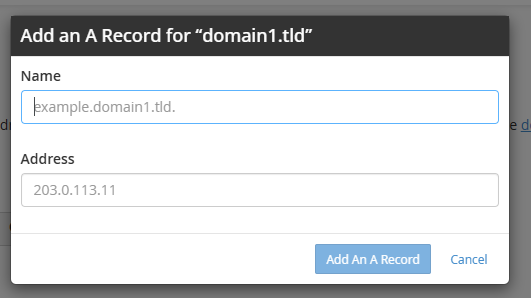
4. For more specific changes and overall management click Manage next to the domain. This area shows the zone records for that domain and from here you can add additional records. Edit, delete existing records or completely reset the DNS zone.
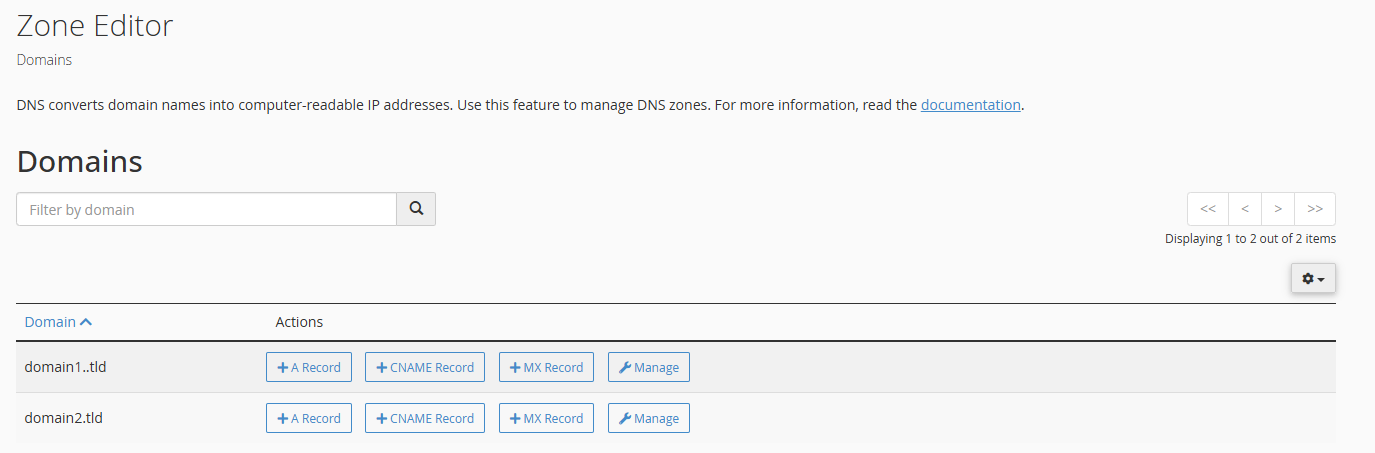
4.1. You can add a record using the drop down menu shown, selecting the record type required.
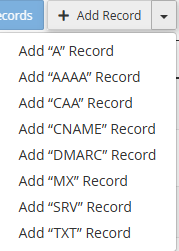
4.2 To edit a record, click the Edit action button for that record as make any changes you need and then use the Save Record button to apply those changes to the zone.

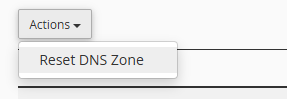
4.3 Finally, using the Actions dropdown menu you can reset the entire zone for that domain to its default state to do this click Reset DNS Zone.
For help identifying entries, see our DNS record types guide.
Before saving a DNS record change
Confirm which nameservers are authoritative for the domain. A record edited in a hosting control panel that is not serving authoritative DNS may have no effect. Record the original value and time-to-live (TTL) before changing an A, AAAA, CNAME, MX or TXT entry, and check that the new value matches the service provider’s instructions.
Allow for DNS caching rather than repeatedly changing records while waiting for results. If you alter nameservers, ensure that mail routing and verification records exist at the new provider. See the DNS pre-migration checklist for a safer sequence.