
Quick answer: Changing nameservers changes which DNS provider is authoritative for your domain, not where website files or mailboxes are automatically stored. A missing record in the new zone can interrupt existing services.
Record current DNS entries, particularly MX, SPF, DKIM and website records, before making the switch. Follow our DNS migration checklist.
Nameservers exist to make navigating the internet easier. They contain specific information pertaining to a domain’s DNS records, which guide requests to the relevant services, including the website itself via A and AAAA records but also Email via MX.
An A record is an IP address in IPv4 format that corresponds to your website, and AAAA records are those in IPv6 format.
Most domains have at least 2 nameservers, this provides a failsafe in case of fault or attack with the aim to prevent downtime for the corresponding services. However, a domain can have more than 2 nameservers, which may be useful for very popular high-load websites and infrastructure.
Without nameservers, the internet would be much less human-friendly, users would have to remember the IP addresses of each website they visit! Although this wouldn’t be the only issue, many of the services built would likely not work, requiring huge changes to existing software.
Our default nameservers for shared hosting
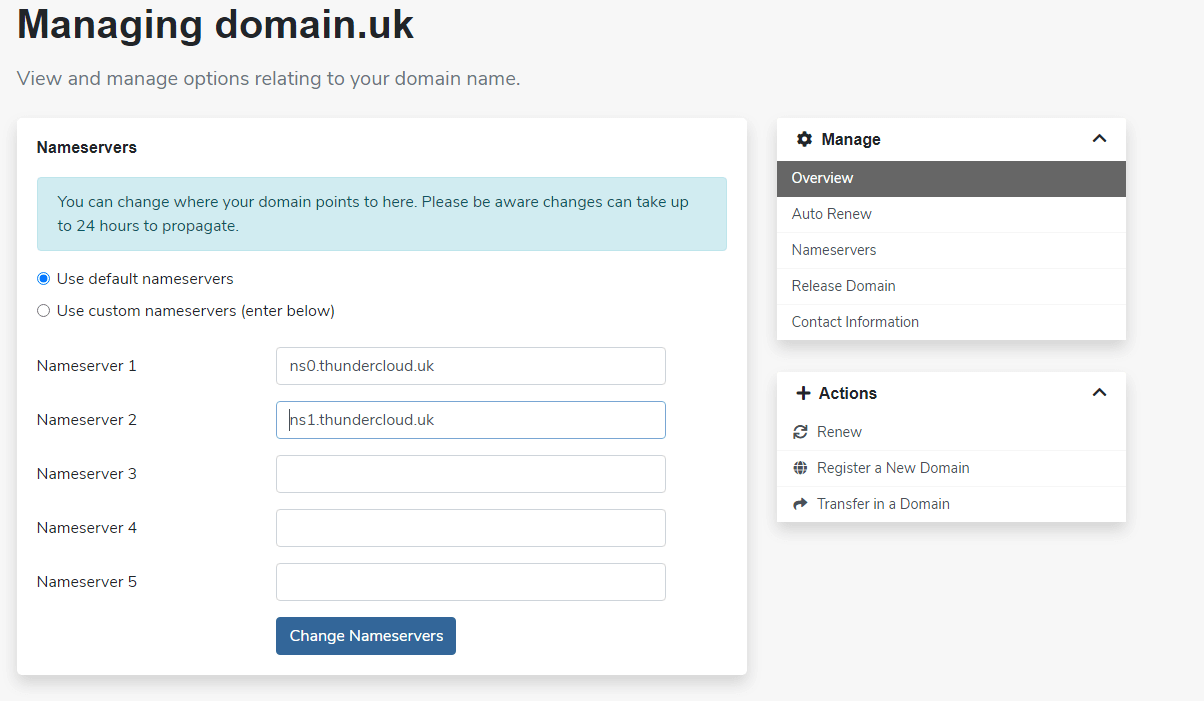
ns0.thundercloud.uk
ns1.thundercloud.uk
Manage nameservers via your client area
Incorrectly configured domain records are one of the most common causes of websites appearing broken. Using the provided defaults helps ensure that all the supplied records are correct and tied to your hosting package.
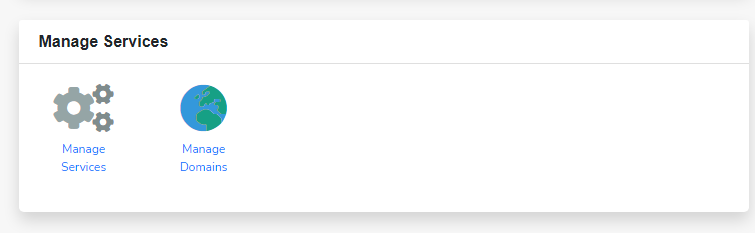
- Firstly, log in to your client area. Following on, in the manage services area, click manage domains.
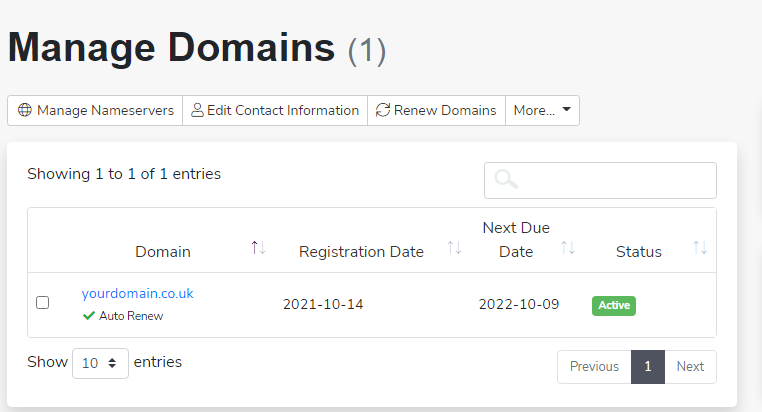
2. Afterwards, select the domain you wish to alter the nameservers of.
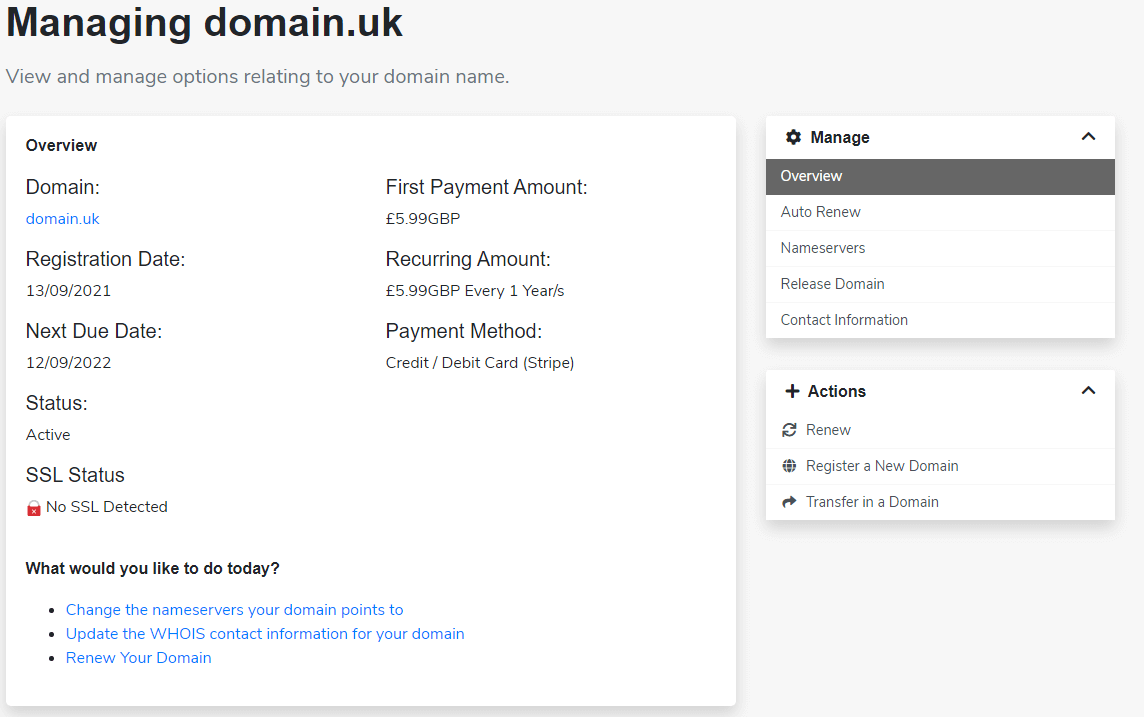
3. Once you have clicked on a domain, you will see the following screen. After, using the manage sidebar on the right under manager, click nameservers.
4. Finally, make any changes to the existing configuration. Click change nameservers when you’re done.
For an explanation of their role, see what nameservers are.
Nameserver changes: a practical safety check
Before replacing nameservers, export or write down the active DNS records, including web, mail and any domain-verification entries. Check that the new DNS zone contains equivalent records before completing the change at your registrar. A website can appear normal while mail or verification services fail because a record was missed.
Once updated, check the website over HTTPS and send a test email in both directions. Allow for caching and DNS propagation instead of repeatedly changing settings. The pre-migration DNS checklist explains what to record.