Nic
Nic
One of the most popular CMS platforms available WordPress helps to power a lot of the internets most popular websites and can handle everything from small blogs to eCommerce sites. In WordPress most content changes can be made via the wp-admin area including creating posts, pages and more, to access this area the WordPress admin username and password need to be entered. If you don’t already have a WordPress hosting account get one now!
If you have forgotten your WordPress password or need to change it for another reason there are several methods you can reset or change it. In this guide learn how you can update or recover your login credentials.
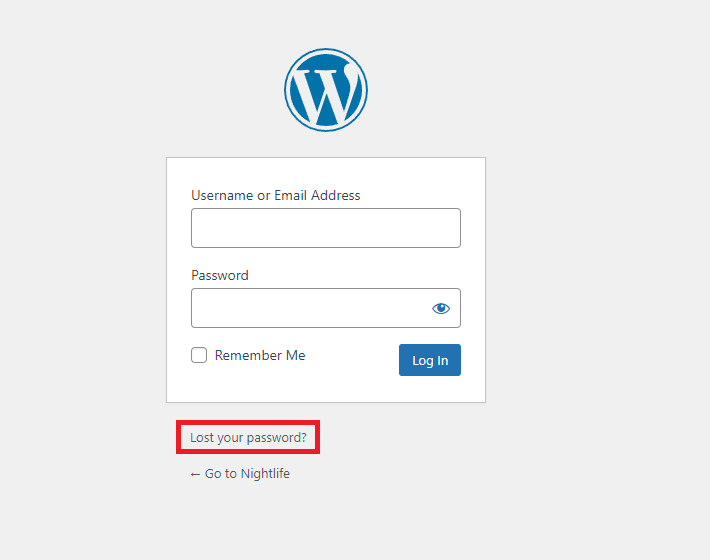
1. To start enter your WordPress website login URL into the address bar of your browser. This is usually yourdomain.uk/wp-admin but may be different depending on your configuration, it should look like below.
2. Moving on click Lost your password? as shown highlighted this will start the reset process.
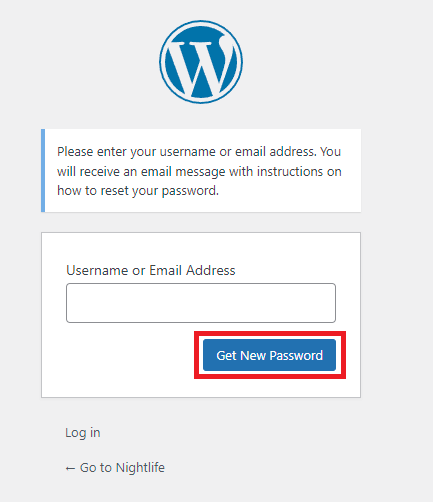
3. Afterwards enter your admin email or username and click Get new password, if you see an error message at this stage you will need to try another email or username or another reset method.
4. Continuing on check the email account for mail from your WordPress site, you should receive mail similar to the one shown below.
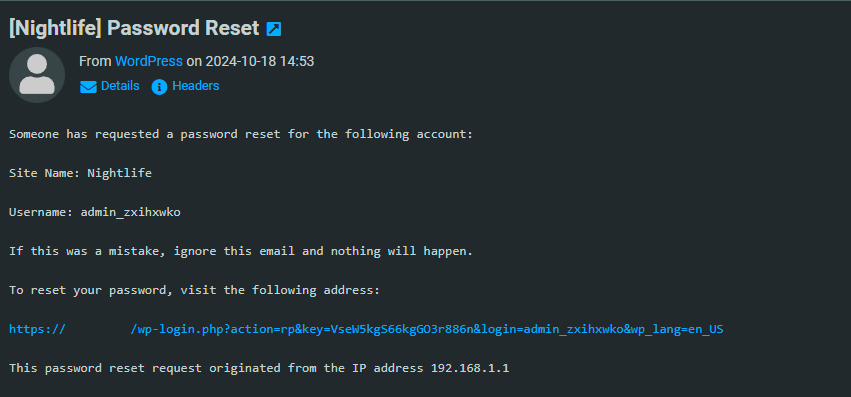
5. Finally, using the link provided set a new password and note it down. You should now have regained access to your WordPress account.
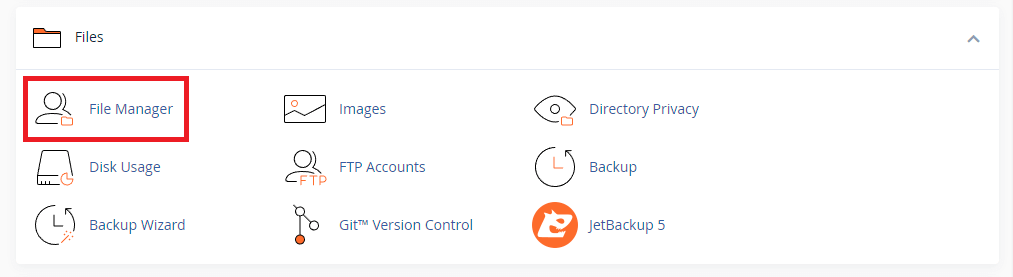
2. Afterwards within the file manager tool navigate to the wp-config file, right click on it and click view as shown.

3. Moving on note down the database name for your WordPress install which you will use later.

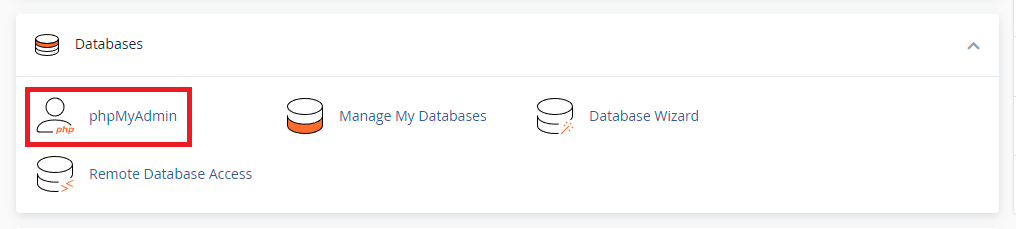
4. Now head back to your main cPanel page, navigate and click on phpMyAdmin.
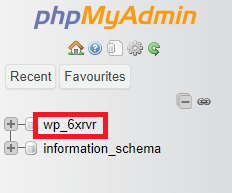
5. Afterwards click on the database that matches the name you noted down earlier.
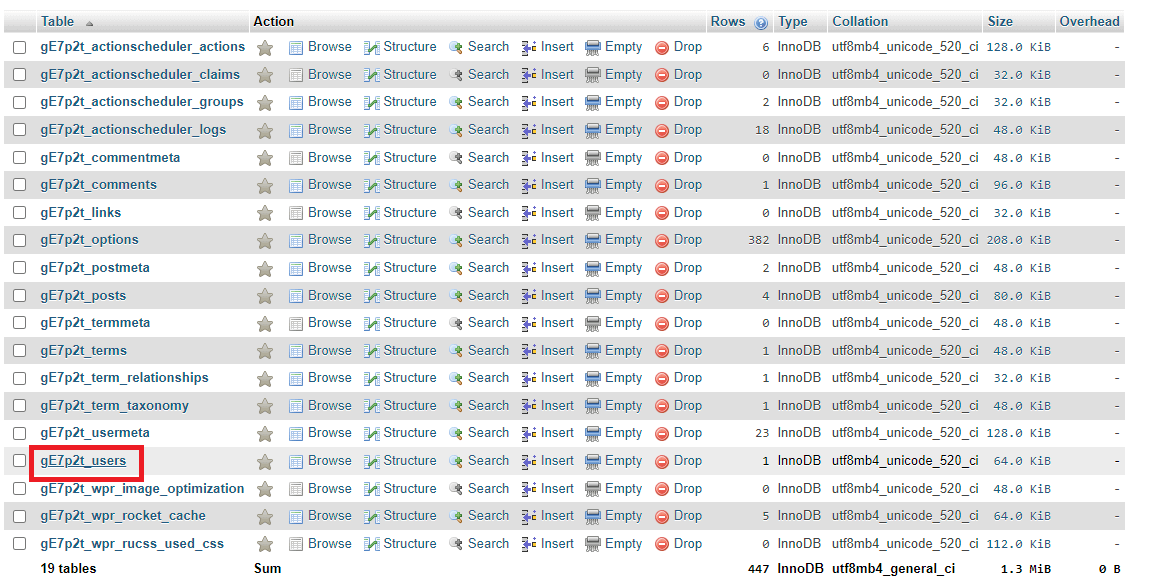
6. Once inside that database click the users table which will list all of the current configured WordPress users.
8. Now click the edit button next to WordPress admin user to begin changing that password.

9. After clicking the edit button using the dropdown menu highlighted [1] select MD5 and then enter your new password as shown in highlighted [2].

10. Finally click go as shown to apply those changes to the database changing your admin password.

You must be logged in to post a comment.