Quick answer: A free TLS certificate can provide the same essential transport encryption as a paid certificate when correctly configured. Verify that HTTPS works for your domain, renewals are handled and pages do not load insecure resources.
HTTPS alone does not make a website malware-free. Our WordPress maintenance checklist covers related precautions.
Your browser warning is doing more damage than you think. If visitors land on your site and see “Not secure”, many will leave before they read a word, fill in a form, or place an order. That is why free SSL certificate setup matters so much – it is one of the quickest ways to protect your website, build trust, and avoid losing traffic for a fix that should not be complicated.
For many small businesses and site owners, SSL still sounds more technical than it really is. In practice, it is the certificate that enables HTTPS, encrypts data sent between your website and its visitors, and tells browsers your site is safe to use. Whether you run a brochure site, a WordPress blog, an online shop, or a client project, having SSL in place is now a basic requirement rather than an optional extra.
Why free SSL certificate setup matters
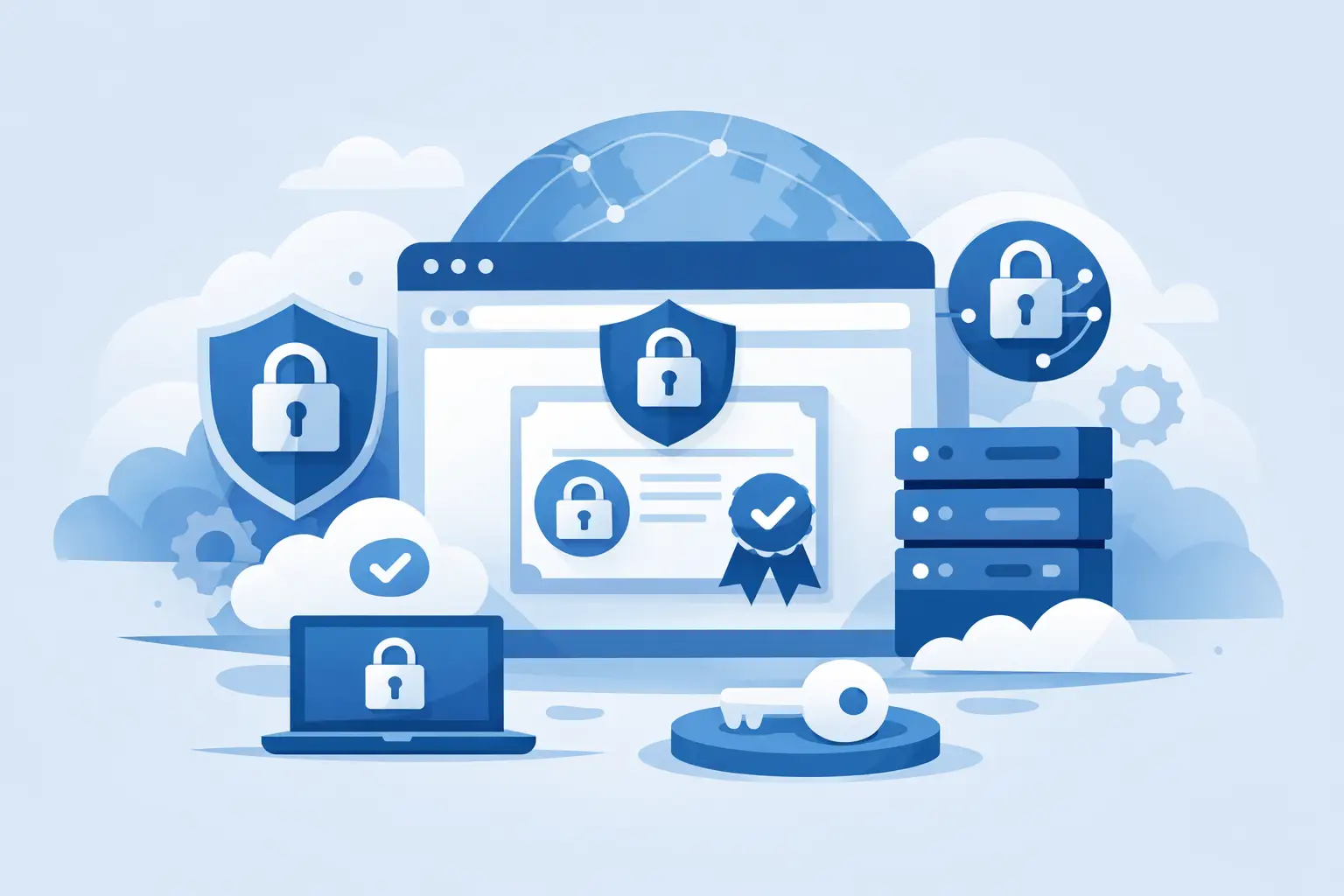
The biggest benefit is trust. When your site uses HTTPS correctly, visitors see the padlock icon and a secure connection instead of a warning message. That matters for contact forms, logins, checkout pages, and email sign-up forms, but it also matters for simple business websites. People expect every modern site to be secure, even if they are only reading service pages.
There is also a practical search benefit. Search engines favour secure websites, and browsers increasingly push unsecured sites to the margins. SSL will not turn a weak website into a top-ranking one on its own, but it removes an obvious problem and supports a healthier technical foundation.
Then there is the cost question. Years ago, adding SSL could mean extra fees, separate renewals, and fiddly manual installs. Now, many hosting providers include certificates as standard. That changes the conversation completely. If your host already offers a certificate at no extra charge, there is little reason to delay.
What a free SSL certificate actually does
A free SSL certificate encrypts data in transit. That means when someone submits a form, logs in, or moves between pages, the information is protected from interception. It also confirms that the website is connected to the domain it claims to represent.
For most small websites, a standard domain-validated certificate is enough. It covers the essentials without the extra cost or admin tied to more advanced certificate types. If you run a normal business site, portfolio, brochure website, blog, or standard WordPress install, you usually do not need anything more complicated.
That said, it depends on your setup. If you manage multiple subdomains, custom infrastructure, or very specific compliance needs, your certificate requirements may be broader. The good news is that the majority of UK site owners are not dealing with edge cases. They just need HTTPS working properly across the whole site.
Free SSL certificate setup: the simplest route
The easiest setup is always through your hosting control panel. If your hosting account includes free SSL, the process is often little more than enabling the certificate and making sure the domain points to the hosting account correctly.
In a typical setup, your steps look like this. First, confirm your domain is connected to the right server. Then issue or activate the SSL certificate in your hosting panel. After that, force the site to load over HTTPS so visitors do not continue landing on the old HTTP version. Finally, check that pages, images, scripts, and forms all load securely.
This is where all-in-one hosting has a real advantage. When your hosting, domain management, backups, and security tools sit under one roof, there are fewer moving parts to go wrong. You are not chasing DNS settings in one account, certificates in another, and redirects somewhere else.
Common problems during free SSL certificate setup
The certificate itself is often the easy part. The issues usually appear just after activation.
One of the most common is mixed content. This happens when your website loads securely over HTTPS, but some page elements such as images, scripts, fonts, or style files still call the old HTTP version. Browsers do not like that, and visitors may still see warnings even though the certificate is active.
Another issue is redirects not being enforced. If both HTTP and HTTPS versions of your site remain live, users and search engines can end up on the wrong version. That weakens consistency and can create confusion. The fix is straightforward – make HTTPS the default and redirect everything else to it.
Caching can also get in the way. After SSL is enabled, your browser, WordPress cache, or CDN cache may continue showing old versions of the site. If something looks wrong after setup, clear the caches before assuming the certificate failed.
Finally, there is timing. DNS changes and certificate provisioning are not always instant. If you have only just connected the domain or changed name servers, you may need a little patience before everything validates properly.
WordPress and SSL: what to check
WordPress sites usually respond well to SSL, but they do have a few habits worth checking. Start by confirming that both the WordPress Address and Site Address use HTTPS. If these still show HTTP, parts of the site may keep loading insecurely.
You should also look at hardcoded links inside themes, page builders, and older content. If internal image paths or buttons were added manually with HTTP links, they may continue causing mixed content warnings. Many site owners miss this because the homepage looks fine while deeper pages still have issues.
Plugins can help with redirection and cleanup, but they should not become a substitute for proper hosting-level configuration. A plugin can patch symptoms; it is better when the certificate, redirect, and server settings are correct from the start.
How to know your SSL is working properly
The first check is simple. Visit your website in a browser and make sure the padlock appears. Then try typing the old HTTP version and confirm it redirects to HTTPS automatically.
After that, test a few key pages rather than only the homepage. Open your contact page, login page, checkout page if you have one, and a couple of older blog posts. Problems often hide in templates or legacy content rather than in the main landing page.
It is also worth checking whether every version of the domain behaves properly. That includes the www and non-www version if both are relevant to your setup. A certificate may be active on one version but not the other if the configuration is incomplete.
When free SSL is enough – and when it is not
For most websites, free SSL is enough. If you are running a local business website, charity site, portfolio, blog, or standard ecommerce build, a free certificate covers the job well. It encrypts traffic, enables HTTPS, and removes browser trust warnings.
Paid certificates can make sense in more specialist cases, but not because free SSL is weak. The real question is whether you need a different validation level, broader domain coverage, or a certificate type suited to a complex environment. For the average site owner, those scenarios are uncommon.
That matters because too many people still assume “free” means second-rate. In hosting, that is not always true. When a trusted host includes SSL as part of the platform, the practical outcome for your site can be exactly what you need – secure browsing, easier management, and one less bill to think about.
Choosing hosting that makes SSL easy
If SSL setup feels hard, the problem is often the platform rather than the certificate. Good hosting should make security easy to enable and easy to maintain. You should not need to be an infrastructure specialist just to get a padlock in the browser.
Look for hosting that includes free SSL by default, offers clear control panel access, supports automatic renewal, and helps you enforce HTTPS properly. Backups, malware protection, and solid support also matter, because SSL is one part of a bigger security picture.
That is where a provider such as Hex Hosting fits naturally for UK site owners who want straightforward management without the usual friction. When hosting is built around simplicity rather than bolt-on extras, SSL becomes a routine part of launching a site rather than a technical project.
A secure site should not be a premium feature or a weekend job. If your website is still showing as unsecured, sorting it now is one of the fastest improvements you can make – not because it is flashy, but because visitors notice trust issues immediately and rarely wait for you to fix them later.